 Capo
Capoसमस्या-निवारण
जब Capo को आपका ऑडियो नहीं मिलता, जब कोई दूसरा एक्सटेंशन टैब पर कब्ज़ा किए हो, और जब यह चलता तो है पर आवाज़ गलत आती है।
समस्या-निवारण: मीडिया पहचान और पेज एक्सेस
"अभी कुछ नहीं चल रहा" — मुझे पहले क्या आज़माना चाहिए?
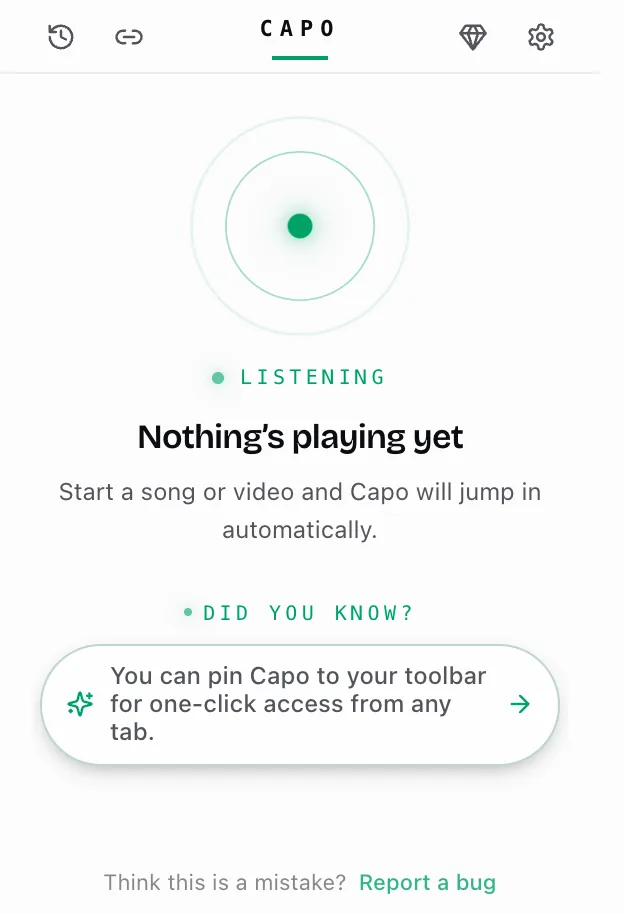
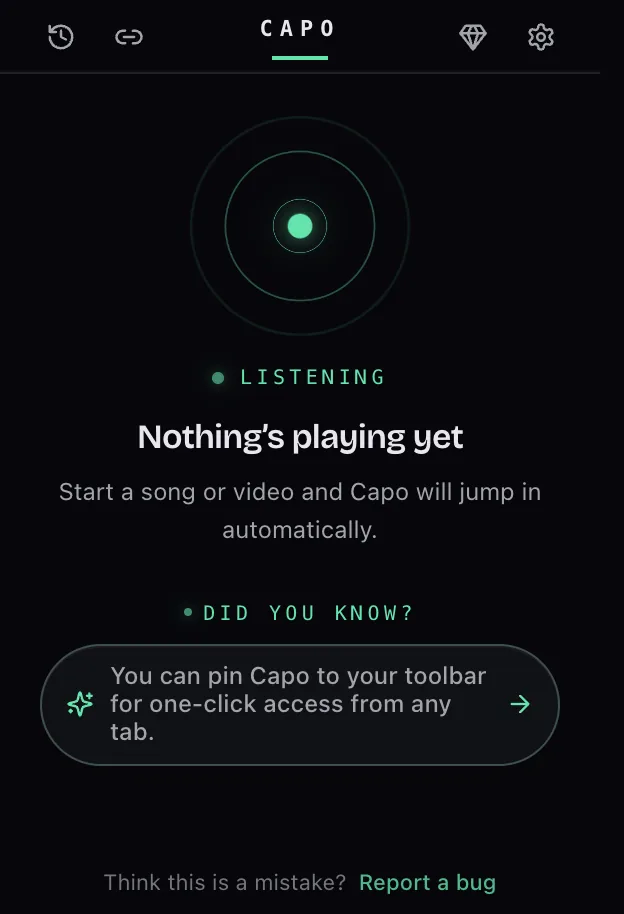
इसका मतलब है Capo जुड़ा हुआ है लेकिन अभी उसने कोई ऑडियो नहीं सुना — प्ले दबाएं।
पेज समर्थित है और Capo का कनेक्शन लाइव है; बस कुछ भी नहीं चल रहा। धड़कते हुए सुन रहा है डॉट के नीचे यह जोड़ता है: कोई गाना या वीडियो शुरू करें और Capo अपने आप जुड़ जाएगा।
- पेज पर प्लेबैक शुरू करें।
- नियंत्रण अपने आप दिखाई देने चाहिए — पॉपअप को बंद करके फिर से खोलने की ज़रूरत नहीं।
- अब भी अटके हैं? टैप करें बग रिपोर्ट करें स्क्रीन के नीचे।
यह जानबूझकर किया गया है — Capo अपना इंजन तभी जोड़ता है जब कोई एलिमेंट वास्तव में बजना शुरू करता है।
- ऑडियो को Capo के इंजन से गुज़ारना महंगा हिस्सा है, इसलिए यह केवल पहली असली प्ले पर होता है — Capo कभी उस मीडिया को नहीं छूता जिसे आप कभी नहीं चलाते।
- साइटें विज्ञापनों और सेंटिनल्स के लिए मौन डमी क्लिप्स भी पहले से लोड कर लेती हैं; वे कभी असली प्लेबैक नहीं करतीं, इसलिए Capo उन्हें नज़रअंदाज़ कर देता है।
रीफ़्रेश Capo को फिर से तैयार करता है — यह इसे तोड़ता नहीं, बस आपको दोबारा प्ले दबाना होता है।
- Capo की स्क्रिप्ट्स पेज के साथ फिर से लोड होती हैं, किसी भी ऑडियो के मौजूद होने से पहले।
- रीफ़्रेश प्लेबैक रोक देता है, इसलिए आप यहां पहुंचते हैं अभी कुछ नहीं चल रहा.
- प्ले दबाएं — ट्रैक पहचाने जाने पर सेव सेटिंग्स वापस आ जाती हैं।
"Capo को पेज पर ऑडियो नहीं मिल रहा।"
कुछ साइटें असली ऑडियो एलिमेंट को पूरी तरह छोड़ देती हैं, इसलिए Capo एक सीमित मोड पर वापस चला जाता है।
Capo आमतौर पर एलिमेंट्स के बजते ही उन्हें पहचान कर ऑडियो ढूंढता है। QQ Music और Pandora जैसी साइटें बिना किसी एलिमेंट के सीधे Web Audio में डिकोड करती हैं — तब Capo इसके बजाय टैब के सुनाई देने वाले सिग्नल पर वापस चला जाता है।
- पिच और वॉल्यूम लाइव रहते हैं।
- स्पीड, लूप और ट्रांसपोर्ट धूसर हो जाते हैं।
"टैब म्यूट होने पर Capo काम नहीं करता।"
टैब को म्यूट करने से Capo बंद नहीं होता — यह काम करता रहता है, बस आप इसे सुन नहीं पाते।
म्यूट रहते हुए भी Capo ट्रैक को पहचानता रहता है और आपकी सेटिंग्स लागू करता रहता है। एक बारीक बात: जब Capo की खुद की वॉल्यूम 0 पर हो, तब भी Capo टैब को सुनाई देने वाला मानता है, इसलिए Capo के अंदर से म्यूट करने पर आपके नियंत्रण कभी गायब नहीं होते।
अनम्यूट करें और आपकी पिच व स्पीड पहले से तैयार होंगी।
"Capo इस पेज पर नहीं चल सकता" — इसका क्या मतलब है?
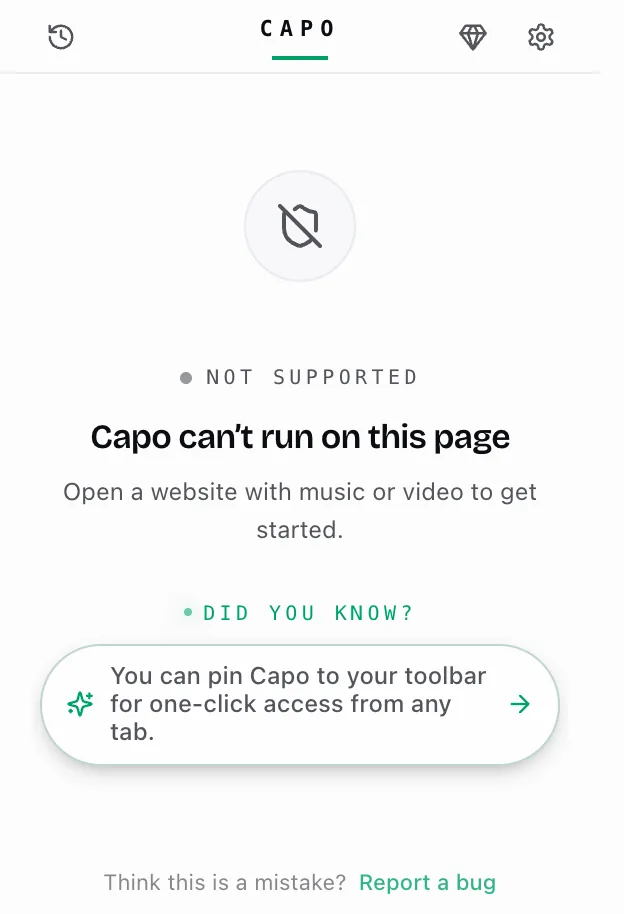
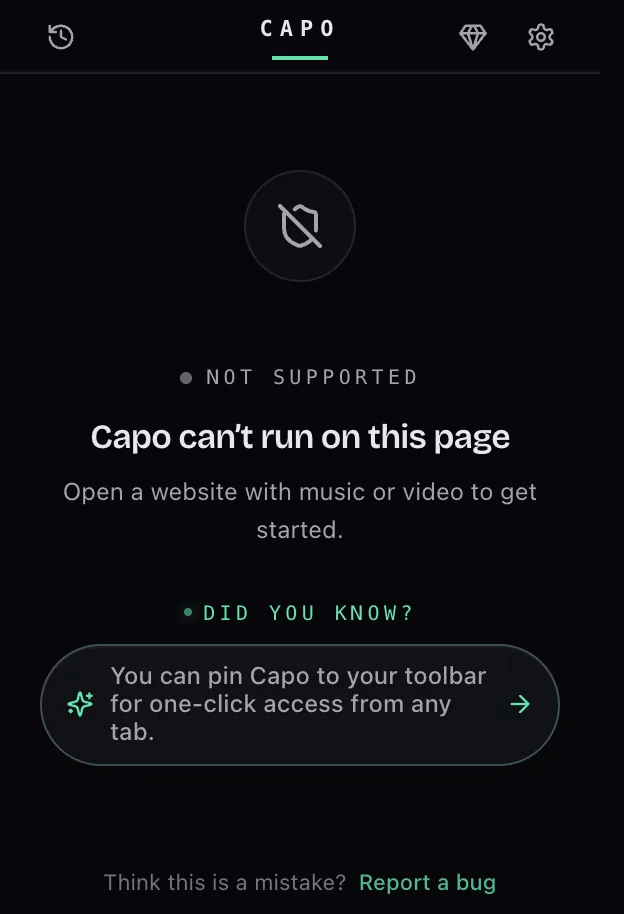
Capo इस पेज पर नहीं चल सकता का मतलब है कि ब्राउज़र यहां हर एक्सटेंशन को ब्लॉक कर देता है — यह नीति है, कोई Capo बग नहीं।
इसे बदलने के लिए आप कोई अनुमति नहीं दे सकते। यह ब्राउज़र-आंतरिक पेजों, एक्सटेंशन स्टोरों, view-source, data: और javascript: URLs, और लोकल फ़ाइलों को कवर करता है। स्क्रीन आगे जोड़ती है: शुरू करने के लिए संगीत या वीडियो वाली कोई वेबसाइट खोलें।
Capo की असमर्थित सूची में शामिल हैं:
- chrome://, chrome-extension://, chrome-search://, chrome-untrusted://
- edge://, brave://, opera://, vivaldi://
- about:, devtools://, view-source:
- chrome.google.com/webstore और chromewebstore.google.com दोनों असमर्थित हैं।
- Edge Add-ons और Firefox Add-ons स्टोर भी ऐसे ही हैं।
आपको मिलेगी Capo इस पेज पर नहीं चल सकता स्क्रीन वहां। यह ब्राउज़र नीति है, और कोई अनुमति इसे अनलॉक नहीं करती।
"Capo YouTube पर काम करता है लेकिन किसी दूसरी साइट पर नहीं।"
कुछ चीज़ें वाकई हर साइट पर अलग होती हैं — इसकी एक ही वजह नहीं है।
- कुछ पेज हर एक्सटेंशन को ब्लॉक कर देते हैं — आपको दिखेगा Capo इस पेज पर नहीं चल सकता.
- कुछ की सख्त सुरक्षा नीति होती है जो Capo के WebAssembly इंजनों को ब्लॉक कर देती है, इसलिए यह चुपचाप हल्के वाले पर वापस चला जाता है।
- कुछ अपना ऑडियो पहले किसी दूसरे एक्सटेंशन को सौंप देते हैं — वह है इस टैब पर कोई दूसरा एक्सटेंशन है.
"इनकॉग्निटो/प्राइवेट मोड में Capo काम नहीं करता।"
Chrome इनकॉग्निटो में एक्सटेंशनों को तब तक ब्लॉक करता है जब तक आप हर एक को अनुमति न दें।
- खोलें एक्सटेंशन → एक्सटेंशन प्रबंधित करें.
- चुनें विवरण Capo पर।
- चालू करें इनकॉग्निटो में अनुमति दें.
लगभग हर मामले में यही पूरा समाधान है। Capo अपनी ओर से कोई इनकॉग्निटो नियम नहीं जोड़ता, इसलिए एक बार Chrome इसे वहां चलने दे तो यह ठीक वैसे ही व्यवहार करता है जैसे सामान्य विंडो में करता है — जिसमें आपकी सेव सेटिंग्स भी शामिल हैं, जो दोनों के बीच साझा होती हैं।
समस्या-निवारण: एक्सटेंशन टकराव
"इस टैब पर कोई दूसरा एक्सटेंशन है" — इसका क्या मतलब है?
किसी दूसरे एक्सटेंशन ने पहले इस टैब के ऑडियो पर दावा कर लिया — किसी दिए गए एलिमेंट को केवल एक ही एक्सटेंशन नियंत्रित कर सकता है।
कोई पेज हर ऑडियो एलिमेंट सौंप सकता है एक एक्सटेंशन के ऑडियो इंजन को — जो पहले आए वही पहले पाए, और उसके बाद ब्राउज़र बाकी सभी को मना कर देता है। स्क्रीन यही कहती है: जब तक कोई दूसरा ऑडियो एक्सटेंशन इसे नियंत्रित करता है, Capo इस टैब की पिच या वॉल्यूम नहीं बदल सकता। उस एक्सटेंशन को बंद करें और रीलोड करें।
- वॉल्यूम बूस्टर, इक्वलाइज़र, पिच शिफ्टर, और कुछ मीडिया कंट्रोलर — ये सभी इसमें आते हैं।
- जो भी ऑडियो एलिमेंट पर पहले दावा करता है वही उसे रखता है — कोई साझाकरण नहीं होता।
Capo इनकार को पहचान लेता है और दिखाता है इस टैब पर कोई दूसरा एक्सटेंशन है यह दिखावा करने के बजाय कि आपके स्लाइडर अभी भी काम कर रहे हैं।
"कोई दूसरा ऑडियो एक्सटेंशन Capo को रोक रहा है।"
टकराव स्क्रीन के दोनों बटनों का इस्तेमाल करें — केवल निष्क्रिय करना काफी नहीं, आपको रीलोड भी करना होगा।
- टैप करें प्रबंधित करें खोलने के लिए chrome://extensions नए टैब में और दूसरे एक्सटेंशन को बंद करें।
- टैप करें रीलोड करें टैब को रीलोड करने के लिए ताकि Capo अपना कनेक्शन फिर से आज़मा सके।
रीलोड वाकई ज़रूरी है — एक बार Capo को मना कर दिए जाने पर, वह फैसला पेज के बाकी जीवन तक बना रहता है।
इसे बांटकर जांचें — एक-एक करके दूसरे ऑडियो एक्सटेंशनों को निष्क्रिय करें और हर बार के बीच रीलोड करें।
अगर टकराव स्क्रीन चली जाती है और आपके स्लाइडर असर करने लगते हैं, तो आपको दोषी मिल गया।
समस्या-निवारण: पिच, स्पीड, वॉल्यूम, और साउंड क्वालिटी
"अत्यधिक मानों पर पिच शिफ्टिंग अस्वाभाविक लगती है।"
आप पिच को जितना आगे बढ़ाते हैं, इंजन को उतना ही अधिक गढ़ना पड़ता है — यह अत्यधिक मानों पर अपेक्षित है।
Capo का डायल डिफ़ॉल्ट रूप से ±12 सेमीटोन तक जाता है; पिच रेंज सेटिंग्स में इसे ±36 या ±48 तक बढ़ा देता है, जहाँ खामियां तेज़ी से स्पष्ट होने लगती हैं।
- पहले एक छोटा बदलाव आज़माएं।
- बढ़ाएं ऑडियो क्वालिटी — Med फ़्री में सबसे मज़बूत स्तर है; Pro पर High सबसे समृद्ध इंजन है।
ऑडियो चिपमंक जैसी लगती है? यह पिच काफी ऊपर शिफ्ट हुई है — पिच डायल जांचें, स्पीड नहीं।
- जांचें पिच डायल और Fine नियंत्रण।
- पिच रीसेट का इस्तेमाल करें — यह एक ही क्लिक में दोनों को शून्य कर देता है, क्योंकि वे वैचारिक रूप से एक ही नॉब हैं।
अकेली स्पीड इसकी वजह नहीं बन सकती: Capo टेम्पो और पिच को अलग रखता है, जब तक आपने चालू न किया हो वेरीस्पीड , जो उन्हें टेप की तरह जोड़ देता है।
"बहुत धीमे या बहुत तेज़ मानों पर स्पीड अजीब लगती है।"
यह ब्राउज़र की अपनी प्लेबैक-दर स्ट्रेचिंग है, Capo का इंजन नहीं — यह अत्यधिक मानों पर खुरदुरा हो जाता है।
- स्लाइडर चलता है 0.25×–3× डिफ़ॉल्ट रूप से।
- स्पीड रेंज सेटिंग्स में सीमा को यहां तक बढ़ाता है 8×, जो और भी खुरदुरा लगता है।
- कुछ साइटें दर परिवर्तन का विरोध भी करती हैं, इसलिए Capo इसे फिर से लागू करता है।
"वॉल्यूम बढ़ाने पर ऑडियो विकृत हो जाता है।"
100% से आगे बूस्ट करने से पहले से मास्टर की गई मिक्स पर असली गेन जुड़ जाता है, इसलिए तेज़ पीक क्लिप हो जाते हैं।
- बूस्ट को तब तक कम करें जब तक यह साफ़ न हो जाए।
- Capo के बजाय अपने सिस्टम वॉल्यूम को बढ़ाएं।
Capo का स्लाइडर डिफ़ॉल्ट रूप से 300% पर रुकता है; वॉल्यूम रेंज सेटिंग्स में सीमा को 600% तक बढ़ा देता है — काफी गुंजाइश।
300% पर भी ऑडियो बहुत धीमा है? यह वास्तव में Capo की सीमा नहीं है — सेटिंग्स में सीमा और ऊपर जाती है।
- सेटिंग्स में, बढ़ाएं वॉल्यूम रेंज 300% से 600% तक।
- इससे आगे, Capo के बजाय अपने डिवाइस और OS के वॉल्यूम को बढ़ाएं।
"ऑडियो क्रैकल या लैग करता है।"


एक व्यस्त मशीन लाइव पिच-शिफ्टिंग थ्रेड को कमज़ोर कर सकती है, जिससे क्रैकल या अंतराल आते हैं।
- सेटिंग्स खोलें।
- कम करें ऑडियो क्वालिटी एक स्तर नीचे और फिर से जांचें।
जैसा कि यह सेटिंग खुद कहती है: Low आपके डिवाइस पर सबसे हल्का है; Med एक अच्छा डिफ़ॉल्ट है; High सबसे समृद्ध लगता है लेकिन धीमी मशीनों पर भारी महसूस हो सकता है। (High Pro टियर है।)
Capo अपना इंजन आलस्य से लोड करता है, इसलिए पहला नियंत्रण बदलाव लैग कर सकता है जब तक वह पहुंचता है।
- वर्कलेट तभी लोड होता है जब कोई फ्रेम पहली बार वास्तव में कुछ बजाता है।
- कुछ साइटें Capo के स्पीड बदलावों का विरोध भी करती हैं और जब भी वे पीछे धकेलती हैं, उन्हें हर बार ओवरराइड करना पड़ता है।
टैब रीलोड करें — यह आमतौर पर दोनों को ठीक कर देता है।
समस्या-निवारण: लूप्स और प्लेबैक नियंत्रण
"मैं अपना लूप सेट नहीं कर पा रहा।"
इस सूची से क्रमवार गुज़रें।
- क्या Capo का मुख्य स्विच चालू है, और क्या वाकई कुछ चल रहा है?
- धूसर लूप कार्ड? साइट बिना किसी मीडिया एलिमेंट के Web Audio के ज़रिए बजाती है (QQ Music, Pandora) — लूप करने के लिए कोई टाइमलाइन नहीं है।
- सिर्फ़ एक बटन धूसर है? प्लेहेड दूसरे पॉइंट के एक-चौथाई सेकंड के भीतर है। इसे हटाएं और फिर से टैप करें।
लाइव स्ट्रीम पर लूप फिर भी काम करता है — बस सीक बार गायब है।
टैप करें A और B और Capo आपको हमेशा की तरह वापस ले आता है। जो गायब है वह है सीक बार: किसी लाइव स्ट्रीम की कोई तय टाइमलाइन नहीं होती, इसलिए Capo इसके बजाय एक स्थिर LIVE बार दिखाता है, बिना किसी स्क्रबिंग या ड्रैग हैंडल के। रिवाइंड और फास्ट-फॉरवर्ड काम करते रहते हैं।
A/B बटन और स्टेपर्स का इस्तेमाल करें, और लूप को स्ट्रीम के अभी भी बचे हुए हिस्से के भीतर रखें।
"प्लेबैक लूप की शुरुआत में बार-बार रुक जाता है।"
वह है काउंट-इन — यह चालू है, और यह जानबूझकर है।
हर रिपीट की शुरुआत में Capo एक पल के लिए रुकता है ताकि आप अपने हाथ फिर से तैयार कर सकें, फिर अपने आप फिर से शुरू हो जाता है।
काउंट-इन बंद करने के लिए लूप पिल में टाइमर बटन टैप करें — फिर लूप बिना रुके चलता है।
विराम की लंबाई सेटिंग्स में है: 1s, 2s, 3s या 5s.
"Capo से प्ले, रिवाइंड या सीक काम नहीं करता।"
Capo के प्ले, रिवाइंड और सीक बटन उस एलिमेंट को चलाते हैं जिसे उसने पेज पर पहचाना — दो चीज़ें इसे तोड़ सकती हैं।
- बिना किसी मीडिया एलिमेंट के Web Audio साइटों पर (QQ Music, Pandora) पूरी प्लेयर स्ट्रिप धूसर हो जाती है — साइट के अपने बटन का इस्तेमाल करें।
- अन्यथा हो सकता है ब्राउज़र खुद प्लेबैक शुरू करने से मना कर रहा हो — पेज पर एक बार प्ले दबाएं, और Capo वहां से संभाल लेगा।
वे बटन Capo द्वारा पहचाने गए एलिमेंट पर प्लेहेड को हिलाते हैं।
- किसी लाइव स्ट्रीम पर वे फिर भी काम करते हैं, लेकिन केवल उस हिस्से के भीतर जो स्ट्रीम बफर करके रखती है।
आप छलांग का आकार (स्किप इंटरवल) सेटिंग्स में बदल सकते हैं।
जहाँ Capo का बार मदद नहीं कर सकता, वहां साइट का अपना स्क्रब बार फिर भी काम करता है।
"कीबोर्ड शॉर्टकट्स Capo में काम करते हैं लेकिन पेज पर नहीं।"
वे शॉर्टकट्स के दो अलग-अलग सेट हैं।
- पॉपअप: सादी कीज़ — A, B, L, C.
- पेज: Alt/Option संयोजन — Alt+A, Alt+B… सेटिंग्स में अपने खुद के ऑन/ऑफ स्विच के साथ।
- जब आप किसी सर्च बॉक्स या कमेंट फील्ड में टाइप कर रहे हों, तो पेज शॉर्टकट्स हट जाते हैं।
- प्ले/सीक पेज पर अनबाउंड भेजे जाते हैं, क्योंकि साइटें उन कीज़ की मालिक होती हैं।
शायद ही कभी समस्या होती है — Capo पेज से पहले सुनता है।
पेज शॉर्टकट्स डिफ़ॉल्ट रूप से इस्तेमाल करते हैं Alt/Option संयोजन, ठीक इसलिए ताकि वे साइटों के दावों से न टकराएं। एकमात्र असली कमी तब है जब प्लेयर किसी एम्बेड के अंदर छिपा हो जबकि बाहरी पेज पर फोकस हो — प्लेयर पर एक बार क्लिक करें और कीज़ काम करने लगेंगी।
किसी शॉर्टकट को किसी सादी की (key) पर फिर से बाइंड किया? तभी कोई साइट जीत सकती है।
समस्या-निवारण: सेव सेटिंग्स
"ब्राउज़र बंद करने के बाद मेरी सेटिंग्स सेव नहीं हुईं।"
सेव किए गए ट्रैक ब्राउज़र के रीस्टार्ट के बाद भी बने रहते हैं — तो किसी चीज़ ने सेव को रोका होगा।
- जांचें ऑटो-सेव चालू है: सेटिंग्स → डेटा और प्राइवेसी
- पुष्टि करें कि वास्तव में कुछ बदला — डिफ़ॉल्ट मानों पर वापस आया ट्रैक सेव नहीं होता
- जांचें कि क्या Capo ट्रैक को पहचान सका: क्या यह इसमें दिखता है इतिहास?
- याद रखें History में 500 ट्रैक रहते हैं; सबसे पुराने हट जाते हैं
"अगला गाना अपने आप चलने पर मेरी सेटिंग्स रीसेट हो गईं।"
यह Capo का अपना काम करना है — सेटिंग्स ट्रैक की होती हैं, टैब की नहीं।
- जब कोई नया गाना शुरू होता है, Capo उस गाने की सेव सेटिंग्स लोड करता है
- अगर उसने यह गाना पहले कभी नहीं देखा, तो इसके बजाय सामान्य सेटिंग्स लोड करता है
- पिछले गाने में आपने जो बदलाव किया वह अगले गाने में साथ नहीं जाता
- नए ट्रैक की पिच या स्पीड में थोड़ा बदलाव करें और वह भी सेव हो जाएगी, अगली बार के लिए तैयार
Spotify और SoundCloud पूरी कतार में एक ही पता रखते हैं जबकि नीचे संगीत बदलता रहता है। जब अगला गाना शुरू होता है, Capo नए ट्रैक को पहचान लेता है और उसके लिए जो भी सेव है उसे लगा देता है, या डिफ़ॉल्ट पर वापस चला जाता है।
"एक ही वेबसाइट पर अलग-अलग गाने एक ही सेटिंग्स इस्तेमाल करते हैं।"
यह प्रति-साइट नियम नहीं है — Capo उन दो गानों में फर्क नहीं बता पा रहा।
हर ट्रैक को अपनी खुद की एंट्री मिलनी चाहिए।
- ट्रैक्स की पहचान साइट द्वारा प्रकाशित जानकारी से होती है
- जहाँ कोई साइट कुछ भी प्रकाशित नहीं करती, वहां Capo पेज के पते पर वापस चला जाता है
- एक ही पता साझा करने वाले दो गाने एक ही एंट्री साझा करते हैं
- इन जैसी साइटें YouTube, Spotify Web और SoundCloud हर ट्रैक को सही ढंग से रिपोर्ट करती हैं, इसलिए वे अलग-अलग रहते हैं
अलग-अलग साइटें Capo को काम करने के लिए अलग-अलग मात्रा में जानकारी देती हैं।
कृपया साइट की जानकारी हमें रिपोर्ट करें और हम उसे देखेंगे।
"सहायता से संपर्क करने से पहले मुझे क्या आज़माना चाहिए?"
संपर्क करने से पहले इस चेकलिस्ट से गुज़रें।
- Capo खोलने से पहले मीडिया चलाना शुरू करें
- जांचें ऑटो-सेव चालू है — सेटिंग्स → डेटा और प्राइवेसी
- किसी नियंत्रण को हिलाएं, फिर ट्रैक को इसमें देखें इतिहास
- पेज रीफ़्रेश करें और एक बार फिर आज़माएं
- इसे और स्पष्ट करने के लिए किसी दूसरी साइट पर आज़माएं
अब भी अटके हैं? दबाएं फीडबैक भेजें सेटिंग्स में और हमें बताएं कि कौन-सी साइट है।
समस्या-निवारण: Capo Pro और Workspace
“मेरी क्लिप नहीं चल रही — यह धूसर है।”Pro
इसका ऑन/ऑफ स्विच बंद है — क्लिप रो पर स्विच को पलटें।
एक धुंधली क्लिप रो का मतलब है कि क्लिप अक्षम है: जब तक आप स्विच को वापस चालू नहीं करते, इसका प्ले बटन और ड्रॉअर निष्क्रिय रहते हैं। यदि कोई क्लिप सक्षम है लेकिन फिर भी नहीं चलती, तो जांचें कि यह न्यूनतम चौथाई-सेकंड से छोटी नहीं है और इसका आरंभ और अंत अभी भी ट्रैक के भीतर है — यदि समय बदल गया है तो ड्रॉअर खोलें और समय फिर से टाइप करें।
“मार्कर पहले से यहां है” — Capo मेरा मार्कर क्यों नहीं जोड़ेगा?Pro
प्लेहेड पर न्यूनतम दूरी के भीतर पहले से ही एक मार्कर है।
Capo मार्करों के बीच एक छोटा सा अंतर रखता है ताकि दो एक ही क्षण पर एक साथ न आ सकें, और + मार्कर-जोड़ें बटन डुप्लिकेट जोड़ने के बजाय ऐसा कहता है। प्लेहेड को थोड़ा पहले या बाद में ले जाएं और वहां जोड़ें, या बस उस मार्कर का नाम बदलें/उसे फिर से खींचें जो पहले से उस जगह पर है।
“स्पीड ट्रेनर शुरू नहीं होगा, या यह तेज़ नहीं होगा।”Pro
इस सूची से क्रमवार गुज़रें।
अभी तक कोई लूप नहीं? ट्रेनर एक लूप को रैंप करता है, इसलिए पहले एक A–B लूप सेट करें — ट्रेंड-अप बटन लूप कार्ड पर होता है। शुरुआत लक्ष्य के बराबर है? चढ़ने के लिए कुछ नहीं है; कम करें शुरुआत या बढ़ाएं लक्ष्य. अटका हुआ लगता है? यह केवल इसके बाद ही आगे बढ़ता है हर रिपीट (डिफ़ॉल्ट रूप से दो), इसलिए इसे हर स्पीड पर कुछ पास दें। रोका गया? लाइव सत्र को रोका जा सकता है — जब तक आप फिर से शुरू नहीं करते, स्पीड वहीं बनी रहती है। सत्र समाप्त करने पर प्लेबैक आपकी सामान्य स्पीड पर वापस आ जाता है।
“इक्वलाइज़र साउंड को नहीं बदल रहा है।”Pro
जांचने के लिए दो चीज़ें: साइट का ऑडियो, और क्या बैंड वास्तव में कुछ कर रहे हैं।
कुछ साइटें Web Audio के माध्यम से चलती हैं कोई वास्तविक मीडिया एलिमेंट नहीं उनके पीछे (कुछ रेडियो और गेम-म्यूज़िक प्लेयर)। इक्वलाइज़र वहाँ भी काम करता है — यह वॉल्यूम वाले ही ऑडियो पाथ में बैठा है — भले ही उन पेजों पर स्पीड और लूप काम करना बंद कर दें। इसलिए सामान्य उपाय और भी सरल है: सुनिश्चित करें कि सभी बैंड 0 dB पर फ्लैट नहीं बैठे हैं और आप उस रेंज को सुन रहे हैं जिसे कोई बैंड वास्तव में कवर करता है — व्यस्त मिक्स में एक बैंड पर हल्की बढ़ोतरी को नोटिस करना आसान नहीं होता।
“साइन-इन टिका नहीं, या मैं बार-बार साइन आउट हो जाता हूं।”Pro
साइन-इन एक capotune.com टैब खोलता है — इसे पूरा होने दें, फिर Capo पर वापस आएं।
जब आप टैप करते हैं साइन इन, Capo आपको साइन इन करने के लिए एक टैब खोलता है और फोकस मिलते ही पॉपअप बंद हो जाता है — यह सामान्य है, कोई विफलता नहीं। टैब की पुष्टि होने पर, Capo को फिर से खोलें और आपका खाता दिखाई देगा। अगर यह काम नहीं आया, तो टैप करें साइन इन फिर से, और सुनिश्चित करें कि आप उसी खाते से साइन इन कर रहे हैं जिससे आपने Pro खरीदा था। एक सत्र लंबे समय बाद समाप्त भी हो सकता है — बस इसे रिफ्रेश करने के लिए फिर से साइन इन करें।
“वर्कस्पेस लैगी है, या ऑडियो में कड़कड़ाहट है।”Pro
अपनी मशीन का काम कम करें: बदलें ऑडियो क्वालिटी कम करें, या चालू करें कम लेटेंसी मोड.
हाई ऑडियो क्वालिटी सबसे समृद्ध लगती है लेकिन सबसे भारी भी है — धीमी मशीन पर, इसे कम करके Med सेटिंग्स में करने से अक्सर अटकना ठीक हो जाता है। कम लेटेंसी मोड (ऑडियो और प्लेबैक के अंतर्गत, हाई टियर पर) देरी को कम करता है, हालांकि फॉर्मेंट शिफ्टिंग सक्रिय रहने पर यह बंद रहता है। एक साथ कई भारी इफेक्ट चलाना — एक बड़ा फॉर्मेंट शिफ्ट, साथ में रीवर्ब और वोकल रिड्यूसर — सबसे मांग वाला संयोजन है, इसलिए यदि ऑडियो बिगड़ जाए तो किसी एक को कम कर दें।