 Capo
CapoAjustes, atalhos e salvamento
O que o Capo lembra de cada faixa, como controlá-lo pelo teclado, e o idioma e a aparência do painel.
Ajustes por site e ajustes salvos
O que o Capo memoriza para cada faixa?
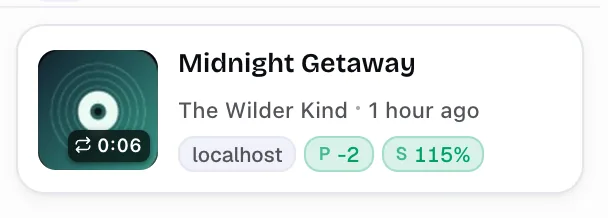
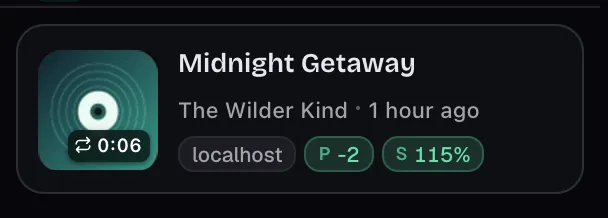
O Capo salva por faixa, não por site — automaticamente, sem botão de salvar.
Seus ajustes são armazenados contra o que está realmente tocando (música, vídeo, episódio), não o site onde está. Duas músicas num mesmo site mantêm cada uma seus próprios ajustes, e esses ajustes acompanham a faixa onde quer que ela apareça.
O que é lembrado:
- Afinação — semitons e seu ajuste fino em cents
- Velocidade
- Volume
- Seu loop A/B
- Extras do Pro: formante, reverb, varispeed, clipes, notas e marcadores
Também guarda o título, o artista, a capa e um link, então Histórico pode te mostrar a faixa e reabri-la com um clique — tudo o que você salvou fica lá.
Quando salva: cerca de um quarto de segundo depois que você para de mexer num controle. Duas coisas precisam ser verdadeiras:
- Salvamento automático está ativado (Ajustes → Dados e privacidade; vem ativado por padrão)
- o Capo consegue identificar qual faixa está tocando
Se tudo estiver de volta ao padrão, sem loop ou nota anexada, o Capo descarta a entrada em vez de guardar algo em branco.
Como removo os ajustes salvos de um site?
Por faixa, não por site — remova entradas do Histórico em vez disso.
- Abrir Histórico
- Apague a entrada que você já terminou de usar
Para apagar tudo de uma vez, vá em Ajustes → Redefinir → Limpar histórico, que remove afinação, velocidade e volume salvos de todas as faixas salvas.
Os ajustes salvos sincronizam entre dispositivos?
Resposta dividida: faixas salvas ficam locais, preferências do app sincronizam.
- Faixas salvas — afinação, velocidade, volume, loops, todo o Histórico — são armazenadas localmente neste navegador e não sincronizam; as entradas por faixa se acumulam rápido, então ficam onde estão
- As preferências do app — idioma, qualidade de áudio, faixa de afinação, os mapeamentos de atalhos, a curva do EQ — usam o armazenamento sincronizado do navegador, então acompanham você em outros dispositivos no mesmo perfil.
- Tema e destaque salvam localmente no navegador em que você os define.
- Redefinir ajustes restaura tudo o mais, mas deliberadamente deixa seu idioma intocado.
O que acontece com os ajustes salvos no modo anônimo?
São os mesmos salvamentos — o modo anônimo não tem um conjunto separado.
Primeiro, o Chrome só roda o Capo numa janela anônima se você permitir: abra Extensões → Gerenciar extensões, selecione Detalhes no Capo, e ative Permitir no modo anônimo.
Depois de permitido, o Chrome compartilha o armazenamento da extensão entre janelas normais e anônimas. Então seus salvamentos existentes estão lá, e qualquer coisa que você salvar numa janela anônima continua lá depois na navegação normal. O Capo não adiciona regras próprias para o modo anônimo.
Atalhos de teclado
O Capo suporta atalhos de teclado?
Sim — dois conjuntos separados e remapeáveis de atalhos.
- Na página os atalhos funcionam enquanto o áudio toca, com o popup fechado.
- Popup os atalhos funcionam enquanto o popup do Capo está aberto.
Ambos estão listados e são remapeáveis, e cada escopo pode ser ativado ou desativado independentemente em Ajustes → Atalhos de teclado.
- Abra o Capo e clique no ícone de engrenagem.
- Selecione Atalhos de teclado.
- Use o seletor no topo para alternar entre Na página e No popup.
- Navegue por grupo: Reprodução, Afinação, Velocidade, Volume e Loop — Efeitos e Marcadores entram na lista no Pro.
- Toque em qualquer linha para remapeá-la, ou clique em Redefinir tudo para restaurar os padrões.
Quais atalhos já vêm definidos?
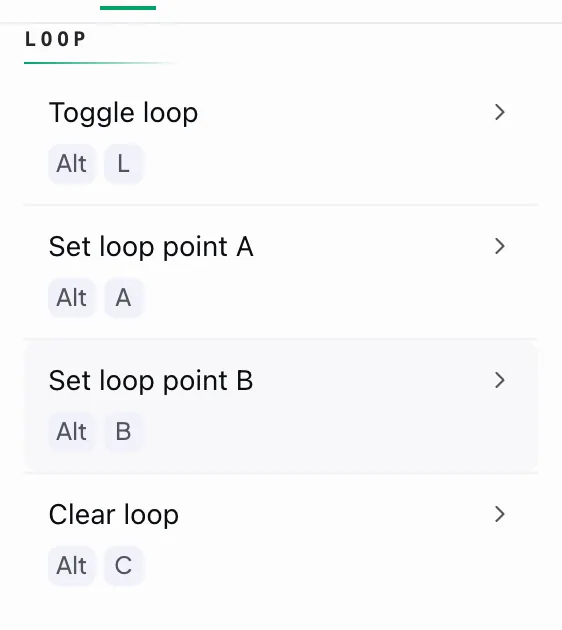
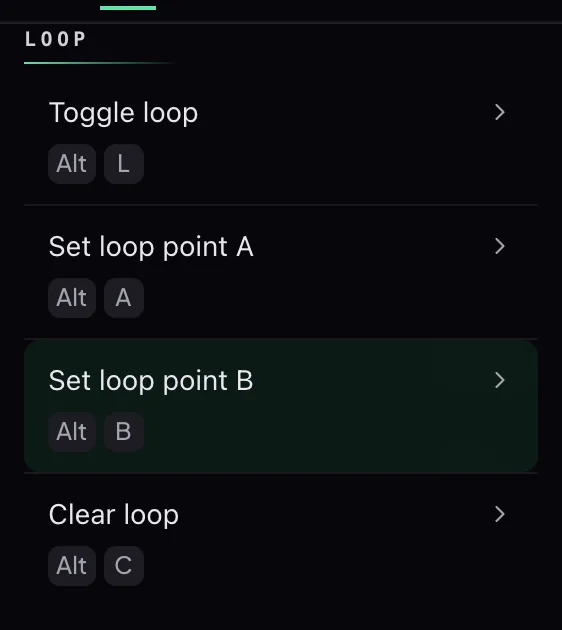
As quatro ações de loop vêm vinculadas por padrão.
- Definir início (página / popup): ⌥A / a
- Definir fim (página / popup): ⌥B / b
- Alternar loop (página / popup): ⌥L / l
- Limpar loop (página / popup): ⌥C / c
Alternar não faz nada até que os dois pontos, início e fim, existam.
Reproduzir/pausar e pular vêm vinculados no popup; sem vínculo na página por padrão.
- Reproduzir/pausar (popup): Espaço
- Voltar/avançar (popup): ← / → — pula pelo seu intervalo de salto
Na página, esses vêm sem vínculo de propósito — os sites já são donos dessas teclas, e o Capo prefere não brigar com eles. As linhas ainda estão nos Ajustes se você quiser vincular as suas próprias.
Como altero um atalho?
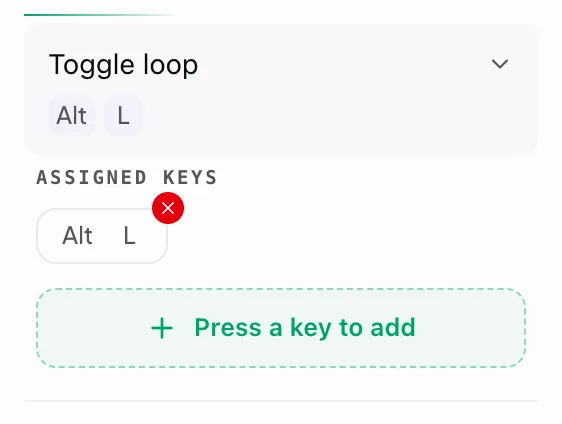
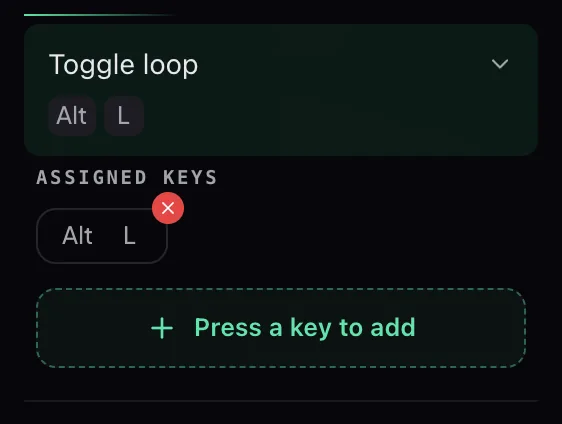
Só o atalho de "abrir" do Capo fica no Chrome — os demais são editados dentro do Capo.
- Atalho do Chrome: um único comando que abre o Capo de qualquer aba. O Chrome é dono dele, não tem padrão, e você o define na própria página de atalhos do Chrome.
- Atalhos de página e popup do Capo: realmente mudam afinação, velocidade e loops. Definidos dentro dos Ajustes do Capo.
Defina o seu — o Capo vem com este atalho sem atribuição.
- No Capo, vá em Ajustes → Atalhos de teclado.
- No card do topo, selecione Definir atalho (ou Mudar atalho).
- A própria página de atalhos do Chrome abre numa nova aba — defina sua combinação lá.
O Chrome define as regras nessa página: um atalho precisa incluir Ctrl ou Alt, Shift é opcional, e combinações de Ctrl+Alt não são permitidas. No Mac, Ctrl vira Command. Os atalhos do Chrome e do sistema sempre ganham, então uma combinação já em uso não chega ao Capo.
Por que um atalho não funciona em alguns sites?
Geralmente é uma de quatro coisas.
- Seu cursor está num campo de texto — o Capo sempre se afasta ali.
- O interruptor do Capo está desligado para aquela aba.
- O interruptor daquele escopo está desligado nos Ajustes.
- O player está dentro de um frame incorporado enquanto a página externa tem o foco — clique no player uma vez e tente de novo.
Isso importa mais no Mac, onde ⌥ mais uma letra deveria digitar um caractere acentuado — o Capo sai do caminho para que isso aconteça.
Os atalhos do Capo vão conflitar com os do YouTube, Spotify ou de outros sites?
Raramente — os padrões do Capo na página usam combinações com ⌥ (Option/Alt), que os sites quase nunca reivindicam.
São identificados pela posição física da tecla, então o layout do teclado não importa. Onde um site realmente captura a mesma tecla, o Capo escuta primeiro e impede que a página também aja.
Ctrl e ⌘ As combinações com Ctrl são sempre deixadas para o navegador.
Idiomas e aparência
Quais idiomas o Capo suporta?
Toda a interface do Capo funciona em 52 idiomas.
Entre eles: Español, Português, Français, Deutsch, 日本語, 中文, 한국어, Русский, हिन्दी e العربية — totalmente da direita para a esquerda — além de dezenas de outros.
Para mudar:
- Abra o popup e clique no ícone de engrenagem.
- Selecione Aparência → Idioma.
- Escolha seu idioma — cada um listado em seu próprio nome nativo.
A mudança se aplica ao vivo — o popup renderiza de novo instantaneamente, nada para recarregar.
Posso mudar o tema ou a aparência?
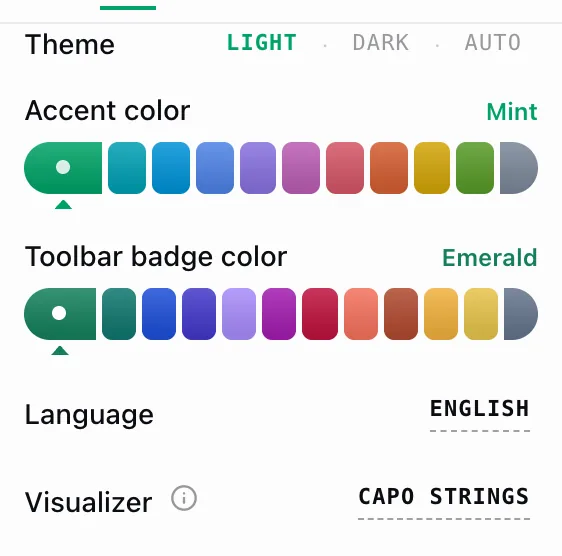
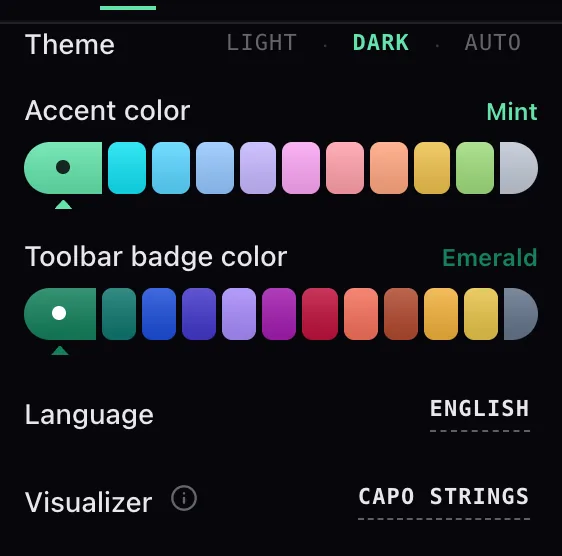
Sim — Ajustes → Aparência tem cinco coisas que você pode personalizar.
- Tema — Claro, Escuro ou Automático
- Cor de destaque — onze opções
- Cor do selo na barra de ferramentas
- Idioma — 52 delas
- Visualizador — a onda ambiente na parte de baixo do popup que se move com a música; escolha um estilo ou desative