 Capo
CapoHow to use an equalizer on YouTube (bass, mud and harshness)
Capo Pro adds a six-band parametric equalizer that applies to every tab. Each band has a frequency, a gain, a Q and a real filter type — high-pass, low-pass, peaking, low shelf, high shelf or notch. Set it once for your headphones rather than per track.
- Open the workspace and switch the equalizer on.
- Pick a band, set its type, then frequency and gain.
- Cut problems before boosting anything.
Parametric means each band has three controls rather than a fixed slider: which frequency, how much, and how wide.
That is the difference between a graphic equalizer, which offers fixed points, and one that can target the exact frequency causing a problem.
Key takeaways
- Six bands, and six filter types per band — high-pass, low-pass, peaking, low shelf, high shelf and notch.
- The curve is global, not per site. It follows you between tabs.
- Cut before you boost. Boosting adds level and eats headroom.
- For bass, lift around 140 Hz rather than 30 Hz. Most headphones cannot reproduce 30 Hz.
What HP, LP, peaking, shelf and notch filters do
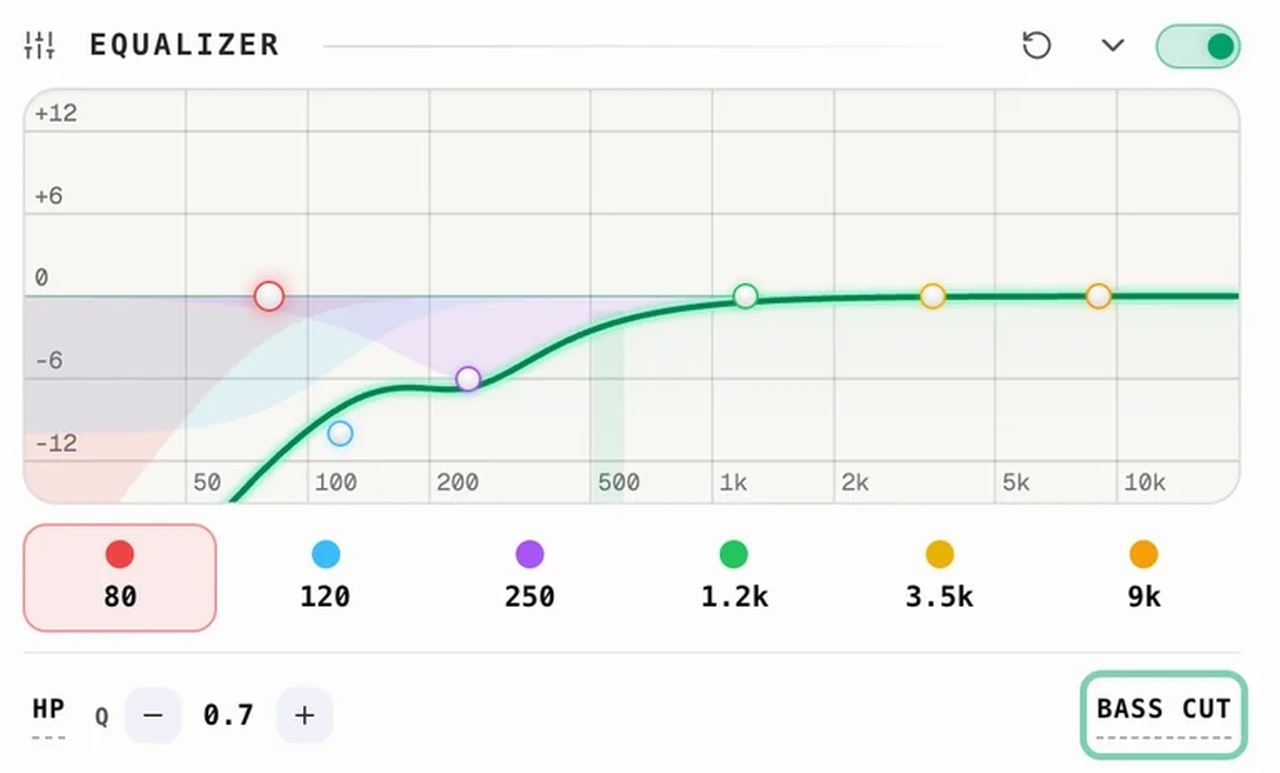
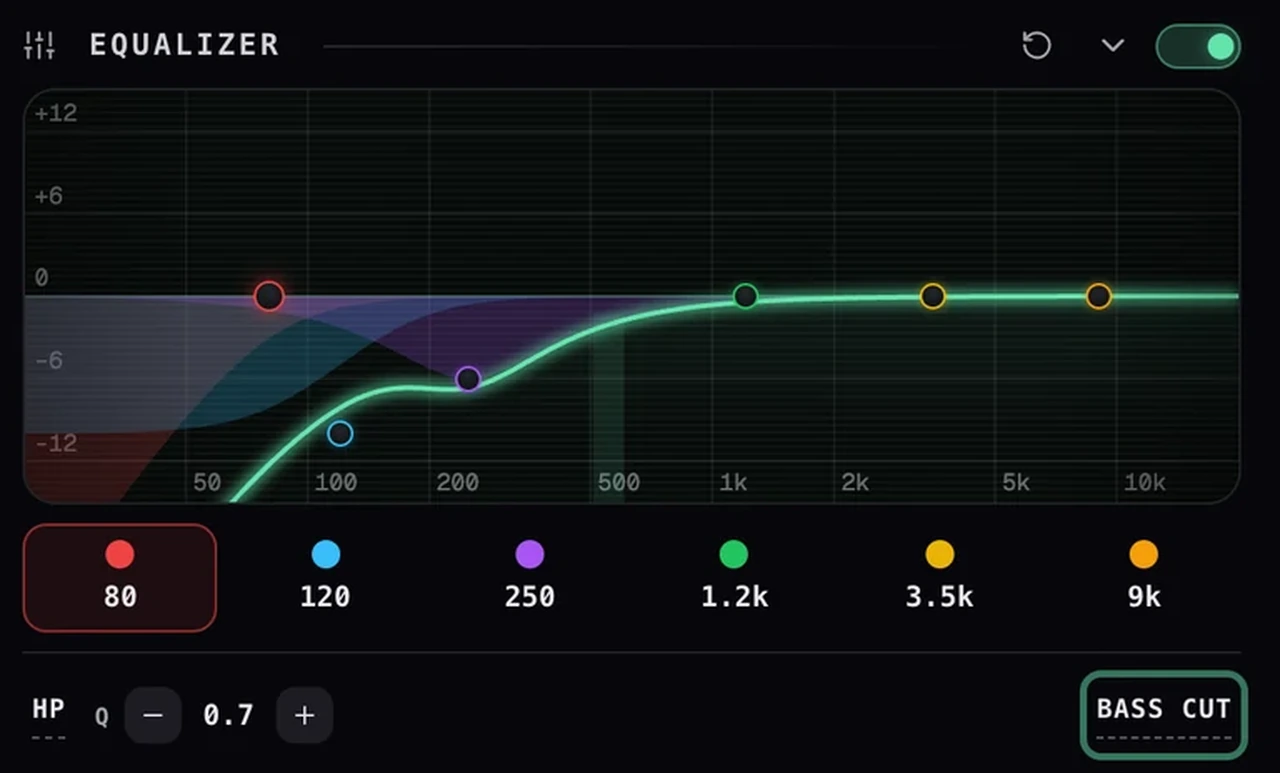
| Type | Shown as | What it does |
|---|---|---|
| High-pass | HP | Removes everything below the frequency. Rumble, handling noise, room boom. |
| Low-pass | LP | Removes everything above it. Hiss, and harsh cymbals. |
| Peaking | Peak | A bell that lifts or cuts around one frequency. Most corrective work. |
| Low shelf | Lo Shelf | Lifts or drops everything below the frequency. Broad bass changes. |
| High shelf | Hi Shelf | The same at the top. Air, or taming brightness. |
| Notch | Notch | A narrow, deep cut. One ringing tone, and little else. |
How to fix a muddy-sounding track
Mud usually sits between 200 and 400 Hz. Use a peaking band, cut 3–4 dB, and sweep to find the exact spot.
Sweep with a boost first to locate the problem, then invert it to a cut. Finding it is easier than fixing it.
How to reduce harsh or sibilant treble
Harshness lives between 2 and 5 kHz, where the ear is most sensitive. Small cuts go a long way.
A 1 dB change at high Q is genuinely inaudible. Exaggerate to confirm the band is live, then dial back.
Presets, before you touch a band
The row under the bands holds presets — Bass cut, Warmth, Flat and others. Each one loads a whole curve at once, so it is worth trying them before moving anything by hand.
Bass cut is the one to reach for on a boomy room recording or a phone capture: it rolls the low end away rather than fighting it band by band. Once a preset is close, editing any band switches the readout to Custom, so you always know whether you are on a preset or your own curve.
How to boost bass on YouTube without it going boomy
Lift a low shelf around 140 Hz by 2–3 dB. Going lower asks for output your headphones probably cannot produce.
If the result is boomy rather than fuller, cut 250 Hz instead of boosting further.
Why the equalizer is global, not per site
The equalizer is global because the problem it usually solves is your hardware, not the recording.
If a track still sounds wrong after this, the issue may be time-domain rather than tonal. See why slowed audio sounds underwater.
Fragen
Why is the equalizer the same on every track?
How do I actually boost the bass?
Should I boost or cut?
What do HP, LP, peak, shelf and notch mean?
Weiterlesen
How to change pitch, speed and volume in your browser
A tour of every free control in Capo: the pitch dial, fine tuning, speed, volume and the A-B loop, with what each one is for.
Capo free vs Pro: what you keep after you close the tab
The free controls are not a trial. This sets out exactly where the line falls and who genuinely needs the workspace.
Why Capo ships three time-stretch engines instead of one
Audio quality picks between SoundTouch, Signalsmith and Rubber Band. What each one costs you, and when to change it.