 Capo
CapoGetting started
What Capo is, where it lives once installed, what the number on its icon means, and what the right-click menu adds.
What is Capo?
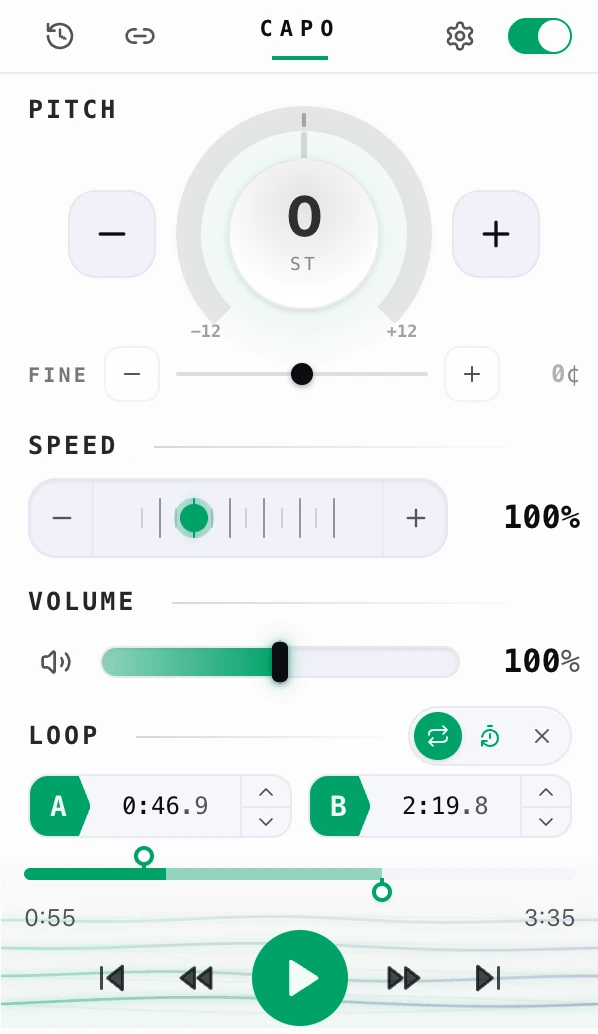
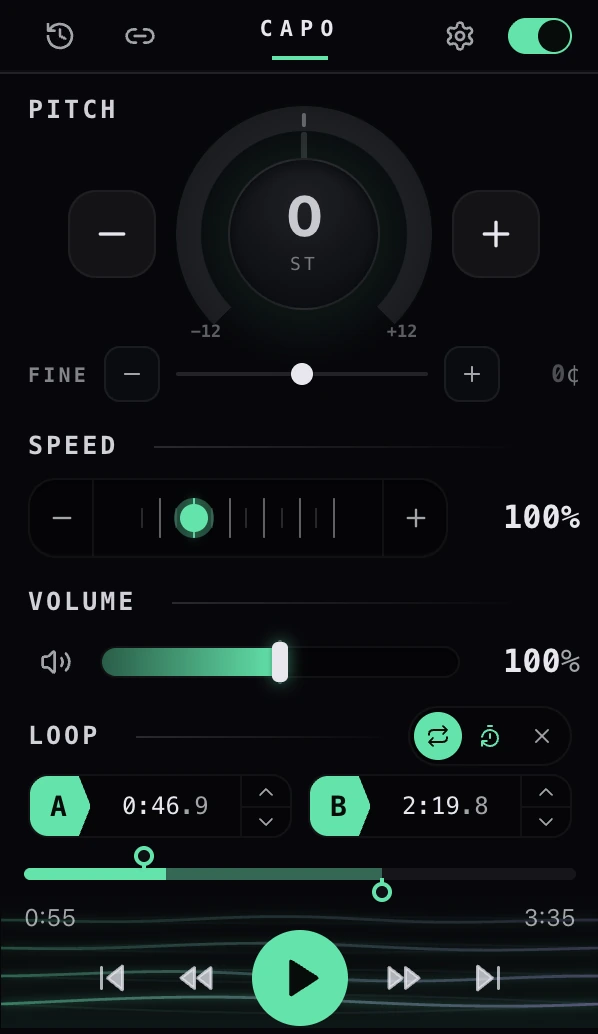
- 1Top bar
- 2Pitch
- 3Speed
- 4Volume
- 5Loop A–B
- 6Timeline
- 7Transport
Capo is a browser extension that reshapes how audio and video sound on the pages you’re already on — no downloads, no separate app.
Open a tab that’s playing (YouTube, Spotify Web, SoundCloud, a lecture, a podcast) and the popup gives you four live controls:
- Pitch — shift the key up or down in semitones, with fine cents on top, so you can play along in your own range.
- Speed — slow a fast passage right down to learn it, or push past normal to skim.
- Volume — boost a too-quiet source well past the browser’s usual 100% cap.
- Loop — mark an A and a B point and repeat just that phrase until it sticks.
How the popup is laid out. A top bar sits above those four modules: History and Share on the left, the Capo mark in the middle, Settings and the on/off switch on the right. The four control modules stack below it in that order — Pitch (semitones plus fine tuning), Speed, Volume, Loop — and the transport buttons and timeline run along the bottom.
It’s built for practising and learning by ear — musicians, language learners, transcribers — but anyone who wants finer control over playback can use it.
Everything happens live in your own browser. Capo reshapes the sound as it plays; it never downloads, copies, or uploads your media, and it remembers your settings per track so they return next time on their own.
What can I use Capo for?
Anything where the sound isn't quite how you need it.
- Slowing a guitar solo down to learn it by ear
- Transposing a song to match your instrument or your voice
- Slowing a podcast or video to catch every word
- Speeding through a lecture or a long talk
- Lifting a too-quiet video up past its normal ceiling
Which websites does Capo work on?
Any site with sound — YouTube, Spotify Web, SoundCloud, Bandcamp, podcasts, lectures.
Capo loads on every page, so all of those work the same way. The exceptions are pages no extension is allowed to touch — browser pages like chrome://, other extensions' pages, the web stores themselves, and local file:// pages. Capo says so when it can't run.
Does Capo work with both audio and video?
Both — Capo treats every audio and video player on the page the same way.
A handful of sites play sound with no real player element behind it — there Pitch and Volume still work, but Speed, the loop, and the transport buttons grey themselves out.
Where is Capo after I install it?
 Capo – Pitch, Speed & Volume
In your browser toolbar as the Capo icon.
A welcome tab opens the second it installs — that's your first sign it's in. If you can't spot the icon afterward, it's most likely tucked away in the browser's extensions menu rather than pinned. Capo can tell, and nudges you with a pin tip when it isn't on the toolbar.
How do I know Capo is connected to the current tab?
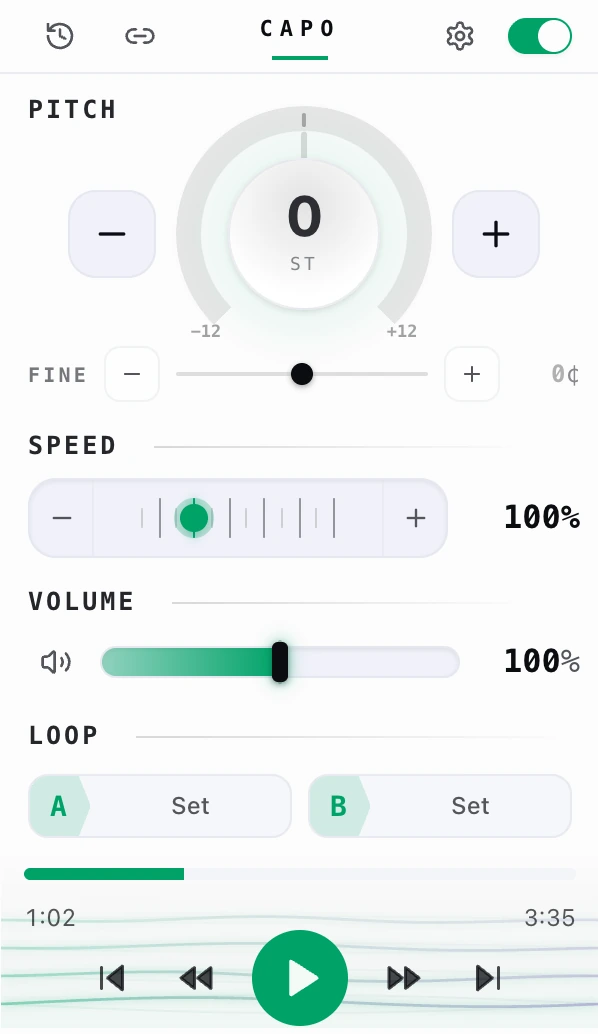
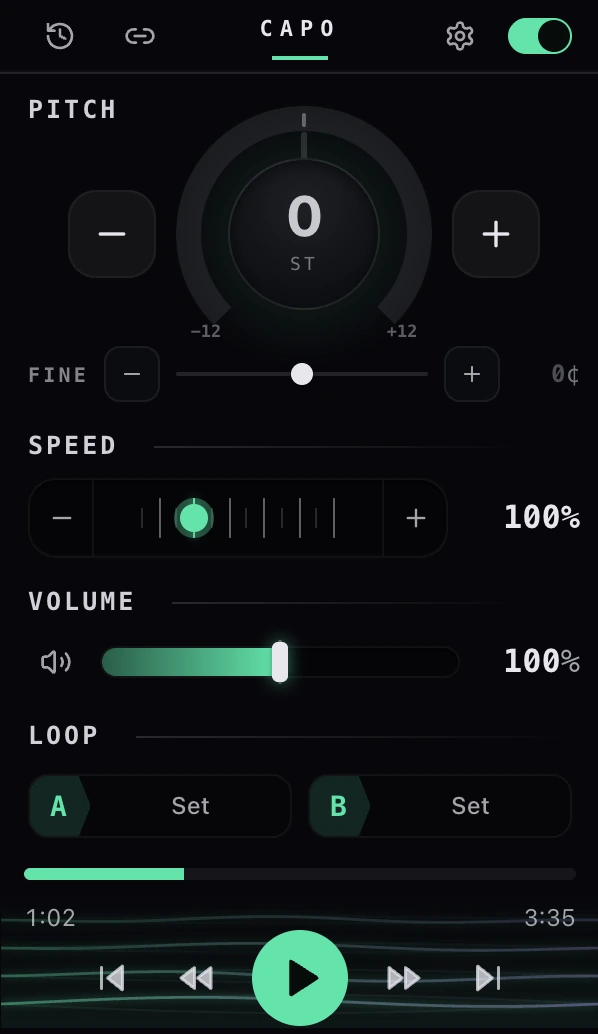
- 1On / off
Open the popup — it tells you which of five connection states you're in.
- Connected: full controls plus an on/off switch in the header.
- Nothing's playing yet — just press play.
- One refresh to go — the tab was open before Capo, so reload it.
- Capo can't run on this page.
- Another extension has this tab — a different audio extension captured the tab first; switch it off there and reload.
What should I try first after installing Capo?
Open YouTube, play something, then try the Pitch and Speed dials.
- Open YouTube and start something playing.
- Click the Capo icon.
- Drag the Pitch dial up a couple of semitones — the key moves while the tempo stays exactly where it was, and the toolbar badge shows the shift.
- Pull Speed down — the song slows without anyone sounding like a chipmunk.
Do I need an account to use Capo?
No — every free feature works from the moment you install.
Pitch, speed, volume, the A/B loop, your per-track saves and History all work with nothing to sign up for. An account only enters the picture if you want Pro, where signing in is simply how Capo knows to unlock the extra controls.
Is Capo free to use?
Yes — the core tools are free; Pro is a paid tier with a free trial.
- Free: pitch, speed, volume, the A/B loop, per-track saves and History — no account needed.
- Pro (paid, free trial available): adds the side-panel workspace along with formant, reverb, varispeed, the EQ, clips and markers.
What version of Capo am I using?


Open Settings — your version number is in the bottom-right corner.
- Open Settings.
- Look at the bottom-right corner — it reads Capo followed by your version number.
- Or check the welcome page, up in the top-left.
Capo reads it straight from the build you've got installed, so it's always the version actually running.
How do I update Capo?
You don't — Chrome updates Capo on its own.
Chrome checks for extension updates when it starts and every few hours after that. To pull one down right now:
- Go to chrome://extensions.
- Turn on Developer mode with the toggle at the top right.
- Select the Update button that appears.
That refreshes every extension you have, not just Capo.
If nothing seems to happen, this is usually why: an update only installs once the extension is sitting idle, and an open popup or side panel keeps it busy. Close Capo and try again, or restart Chrome.
When a new version does land, Capo shows you a What's New note exactly once.
Who is Capo best for?
Musicians, singers, language learners, students — anyone who needs sound adjusted.
- Musicians and music students transposing a track or slowing a passage to learn it by ear
- Singers matching a song to their range
- Language learners slowing a podcast down to catch every word
- Students speeding through lectures
- Anyone who wants a too-quiet video louder or an ear-piercing intro tamed
Toolbar icon, badge, and popup
What does the number or badge on the Capo icon mean?
+5Your pitch for that tab, in whole semitones.
+5 means five semitones up, -3 means three down. It's the small mint chip on the icon, there purely so you can tell at a glance that a tab is transposed without opening anything.
Does the badge show the current pitch, speed, or volume?
Pitch only — and just the whole-semitone part.
Speed, volume, and the fine cents tuning never reach the badge; there's simply no room on a toolbar chip, so they live in the popup where you can actually read them. Open Capo for the full picture.
Right-click menu
What can I do from the right-click menu?
Three things: pitch presets, speed presets, and a reset.
- Pitch presets (semitones): -12, -7, -5, -2, 0, +2, +5, +7, +12 st
- Speed presets: 0.5×, 0.75×, 1×, 1.25×, 1.5×, 2×
- Reset pitch & speed — puts both back to normal, leaving your volume alone.
Can I change pitch, speed, or volume from the right-click menu?
Pitch and speed, yes — as presets. Volume, no.
A menu item is a single click, so it only suits fixed values. Volume (and the fine cents tuning) want a slider you can sweep, and those stay in Capo's popup where they belong.
Why don’t I see Capo in the right-click menu?
Check what you right-clicked — Capo attaches to the page itself.
- Capo's items are registered for the page, not for a link, an image, or the video frame. Try an empty patch of page instead.
- They also won't appear on browser pages like chrome:// or the Web Store, where extensions aren't allowed to run at all.
This is deliberate: media right-clicks misfire on the exact sites that matter most, so Capo stays on the page context.
How do I open a local audio or video file with Capo?
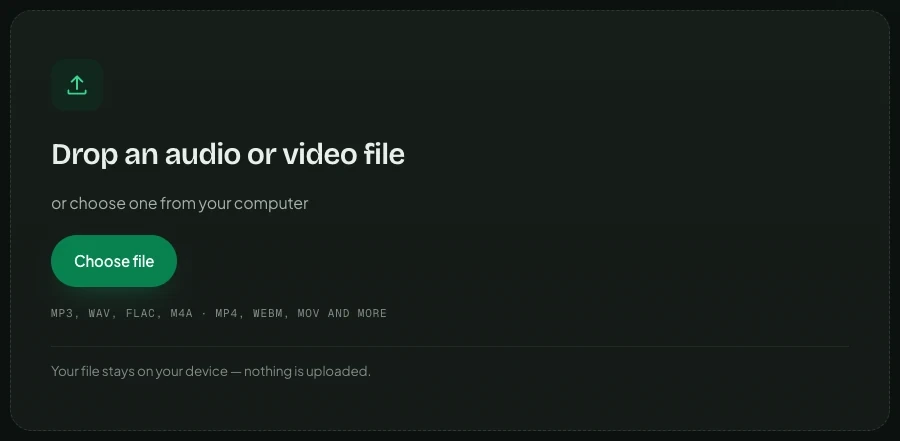
Open Play local file from Settings — it opens Capo’s web player, where you drop a file.
The player takes audio and video straight from your computer — MP3, WAV, FLAC, M4A and MP4, WEBM, MOV among others — and the file stays on your device; nothing is uploaded. Once it’s playing, open Capo from your toolbar and retune it exactly like anything else on the web: pitch, speed, loops and, with Pro, the full workspace.
Finding it: drop a file anywhere on the panel, or press Choose file; the supported formats are listed just below the button.