Pitch, speed, volume & loops
The three controls you reach for, A–B loops for drilling a phrase, and what Capo does to keep the sound clean.
Pitch, speed, and volume
What does the Pitch control do?
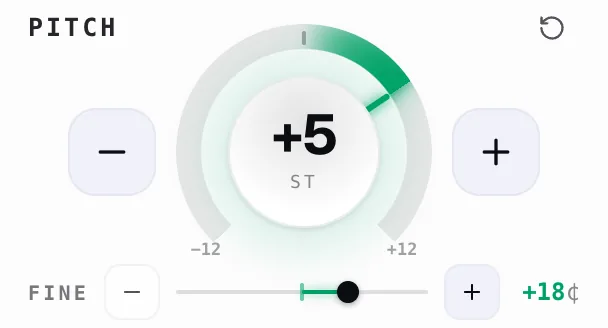
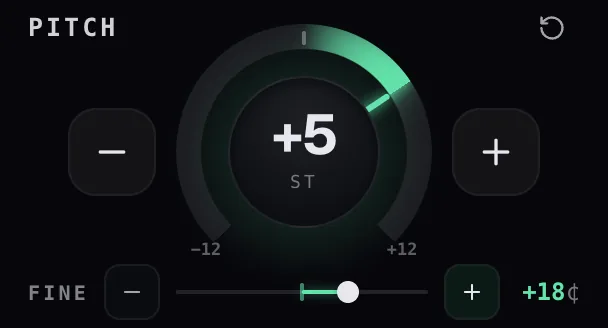
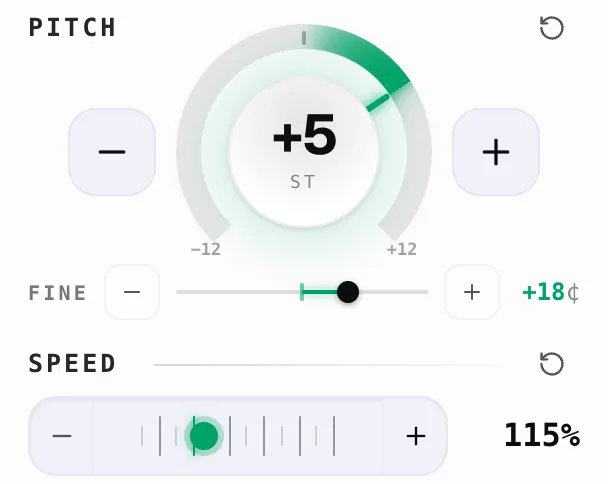
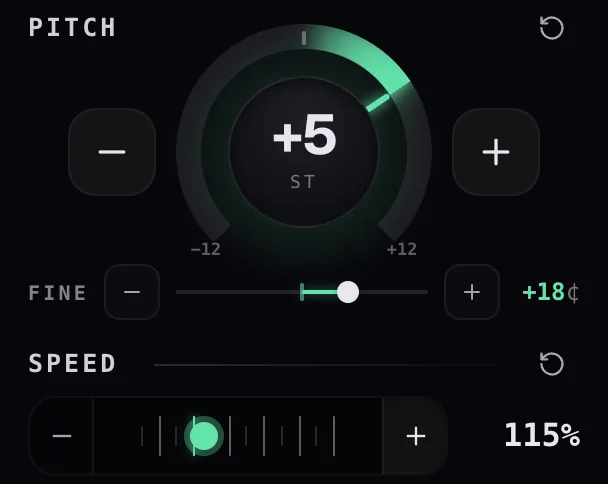
Pitch shifts the key in semitones without changing the tempo.
The song plays at the same speed, just in a different key. Capo turns your setting into a pitch ratio and hands it to the audio engine live.
- Drag the dial
- Scroll it
- Arrow-key it
- Tap the + / − buttons beside it
What does “transpose by semitones” mean?
A semitone is the smallest musical step — transposing shifts the whole track that many steps.
It's one fret on a guitar, or one black-or-white key on a piano. +2 st puts a song in C into D, and 12 semitones make a full octave.
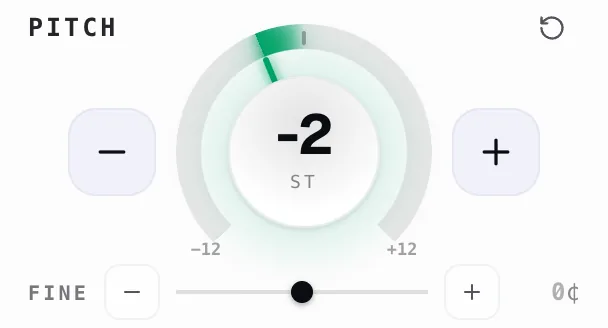
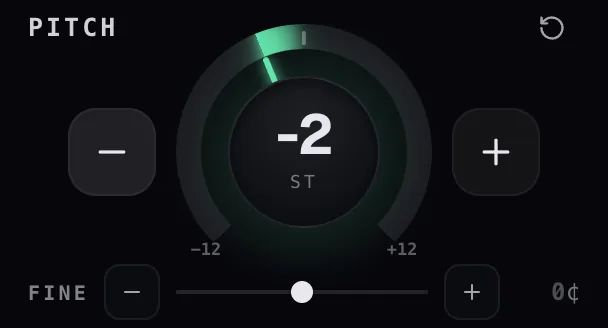
The dial reads out in st, and the toolbar badge shows the same whole number.
What does the Fine control do?
Fine nudges pitch in cents — hundredths of a semitone — for hair's-breadth tuning.
It's the slim slider under the dial, running ±50 ¢ and stepping 1 ¢ at a time, with its own + / − buttons.
Past ±50 ¢ you're better off bumping the semitone dial by one instead.
What is the difference between Pitch and Fine?
Same knob, two resolutions: Pitch moves in whole semitones, Fine moves in cents.
- Pitch — whole semitones, real musical steps
- Fine — cents, a hundredth of a semitone each
Capo adds them together into one shift before touching the audio, so +2 st with +25¢ is a single pitch change. That's also why one Reset button clears both — they're one control conceptually.
When should I use Pitch instead of Fine?
Use Pitch for a different key, and Fine when a recording is merely out of tune.
Reach for Pitch when you’d describe the change in steps, frets or keys:
- Song sits too high to sing — pull the dial to −2 st
- Practising a piece written in E♭ on a guitar in E — nudge it +1 st
Fine is far too small to get you there.
Reach for Fine when the key is right but the tuning is not — an old tape running slightly sharp, or a band tuned to A=432 instead of A=440. A few cents pulls the recording onto your instrument, where a whole semitone would overshoot badly.
Most listeners never touch Fine; it is there for exactly those moments.
What does the Speed control do?
Speed changes playback rate from 0.25× to 3×, shown as a percentage.
Capo sets the player's own playback rate rather than stretching the audio itself, and leaves pitch alone, so a slowed passage stays in key.
- Dragging snaps to tidy 5% stops
- The + / − caps, arrow keys, and scroll wheel nudge by 1%
What speed range does Capo support?
0.25× to 3× by default, extendable to 8×.
That's quarter speed up to triple, as shipped. If that's not enough, Settings › Speed range opens the slider all the way to 8×.
The slider is the only thing that clamps; narrowing the range later pulls any faster-than-allowed speed back inside the new ceiling for you.
What does the Volume control do?
Volume scales how loud the tab plays, from silent up to 300%.
That's well past what the page's own slider allows.
- 100% sits at the middle notch, so "normal" is always easy to find
- The left half keeps full precision for quiet settings
- A mute button sits on the left
- Scrolling over the row nudges by 5%
How loud can Capo make audio?
Up to 300% by default, or 600% via Settings.
Triple the page's normal output, which usually rescues even a hopelessly quiet lecture recording. Need more? Settings › Volume range raises the ceiling to 600%.
Fair warning: boosting multiplies whatever's already there, so past a point you're amplifying hiss and distortion along with the voice.
How do I make a small pitch, speed, or volume change?
- 1± one semitone
- 2Fine cents
- 3± 1% a tap
- 4Volume
Use the smallest control for the smallest move.
- Pitch: + / − for one semitone, or the Fine slider for single cents
- Speed: the caps or arrow keys move 1% (dragging jumps 5%)
- Volume: arrows or the wheel move 5%
Turn on Settings › Scroll to adjust and you can hover any slider and just scroll.
Can I change a value by scrolling the mouse wheel?


Yes — turn on Settings › Controls › Scroll to adjust.
Once it’s on, hover any control — the Pitch dial, the Fine slider, Speed, or Volume — and roll the mouse wheel to nudge its value up or down, one step a notch. No clicking or dragging needed.
It’s off by default, so scrolling over the popup scrolls the popup until you switch it on.
How do I reset everything back to normal?
Click the reset arrow on Pitch, Speed and Volume — or reach for one of Settings' bigger resets.
- Quickest: click the reset arrow on each of Pitch, Speed and Volume
- To hear the page untouched without losing your values, flick Capo's switch in the header off — audio routes straight around the engine
- Settings › Reset settings restores your preferences to their defaults
- Settings › Clear history wipes saved values for every page
Why does my audio sound strange after a large pitch change?
Big pitch shifts force the engine to invent more sound, which is where it starts to smear.
A couple of semitones is transparent; a whole octave starts to smear, especially on voices.
Stay within ±12 where you can, or try Settings › Audio quality › High — the richest of the three engines handles big shifts best.
A/B loop
What is A/B Loop?
A/B Loop replays one stretch of the track, between two points you set, on repeat.
- Set A for the start and B for the end.
- The loop switches itself on the moment both points are captured and in order.
- Capo keeps one A/B region per track, drawn as a band right on the seek bar.
When should I use A/B Loop?
Any time you want to hear one passage again and again.
- A guitar solo or a tricky phrase
- A sentence in a language lesson
- One section of a lecture
Loops can be as short as 0.25s, so a single lick is fair game. Pair it with Speed to slow the section down while you learn it.
Where are the loop controls in Capo?
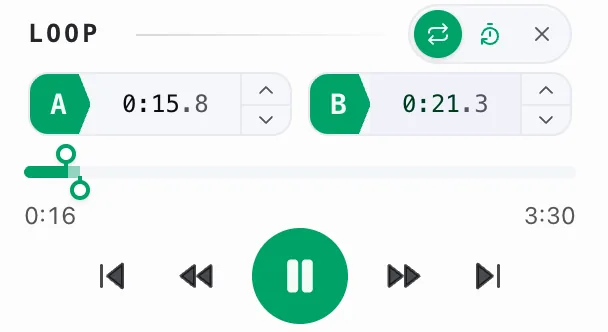
- 1Loop A–B
- 2Timeline
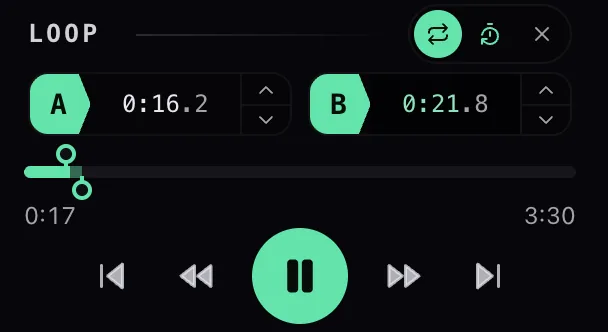
In the Loop card on Capo's main screen, below Volume.
- An A button and a B button, side by side.
- Capture a point and a pill appears above them with toggle, count-in, and clear.
- The A–B band itself lives on the seek bar, down in the player strip.
How do I set the A/start point?
Play up to the spot you want and tap A; play on to the end of the section and tap B.
- Play the track up to the spot you want.
- Tap A — Capo grabs the live playhead at that instant, not a rounded-off guess.
- Let it play to where the section should end, then tap B.
- Prefer keys? Press A or B with the popup open, or Alt/Option + A / Alt/Option + B straight on the page.
With both points set the loop arms itself automatically.
B has to land at least 0.25s after A. Nearer than that and the button greys out, because the loop would collapse to nothing.
How do I play the same section again and again?
Set A, then B — that's the whole trick.
- Tap A at the start of the section.
- Tap B at the end — the loop turns on automatically once both points are in and ordered.
- Capo snaps the playhead back to A every time it reaches B.
Want a breather at the top of each pass? Switch on count-in and Capo pauses briefly before resuming.
What is count-in, and how do I turn it on?


Count-in gives you a breather at the top of every loop repeat.
With both A and B set, a timer button appears in the Loop pill. Switch it on and Capo pauses briefly each time the loop jumps back to A, then resumes playing on its own — handy for getting your hands or voice ready before the phrase comes round again.
Choose how long the pause lasts in Settings › Audio & playback › Count-in duration: 1, 2, 3, or 5 seconds (3 by default). It’s free.
How do I turn a loop off?
Tap repeat in the loop pill to disarm it — or × to wipe it completely.
Turn it off, keeping the points: tap repeat in the pill above the A/B buttons, or press L in the popup, Alt/Option + L on the page. Both points stay put and the band stays on the seek bar, dimmed, so you can flip the same loop back on whenever you like.
Clear it altogether: hit the × in the pill, or press C in the popup, Alt/Option + C on the page. That wipes the lot — both points, the on/off state and count-in all go back to default, and the band disappears from the seek bar.
The × shows up as soon as you have captured even one point.
Can I change the loop points after setting them?
Yes — drag, nudge, or re-tap; whichever suits.
- Drag the A or B handle along the seek bar.
- Nudge in 0.1s steps with the +/− steppers on each point.
- Re-tap A or B at a new spot.
Capo keeps the quarter-second minimum between them, so you can't accidentally invert the loop.
Are loop points remembered for each website?
Better than per-website — Capo saves a loop per track.
It fingerprints what's actually playing, so your loop comes back on that song and doesn't bleed onto the next one in the queue, even on sites that never change the URL. It's on by default; the auto-save toggle in Settings turns it off.
Audio quality and performance
What does Capo’s audio engine do?
Capo intercepts the page's audio and processes it live, entirely on your machine.
It quietly stands between the page and your speakers.
- Runs it through a real-time processor that does the pitch shifting
- Then through a volume stage on the way out
- Speed is handled differently — Capo just tells the player itself to run faster or slower
Why does Capo try to keep vocals natural when changing pitch or speed?
Because a chipmunk voice isn't useful for practice — pitch and speed are kept fully independent.
- Speed is handled by the player with pitch preservation switched on, so slowing down never drops the key
- Pitch is shifted by the worklet with the tempo left alone
Two knobs, no crosstalk. Pro adds a Preserve voice switch that keeps vocal character in place through big shifts.
Why does audio sometimes crackle or lag?
The pitch processor does real-time math, and a busy machine can't always keep up.
A hundred tabs, a video call, an older laptop — the processor can fall behind and you hear it as crackle. The High quality engine is the hungriest.
Drop Settings › Audio quality to Med or Low and it usually settles.
What should I do if audio sounds garbled?
Ease off extreme settings first, then lower quality, then reload if it's still off.
- Ease off the extremes — a huge pitch shift or a very fast/slow speed is the usual culprit; bring them nearer neutral and see if it clears
- Open Settings › Audio quality and step down to Med or Low
- Still odd? Reload the page so Capo rebuilds its engine from scratch
What should I do if High quality uses too much CPU?
Switch Settings › Audio quality down to Med or Low.
Low, Med and High are three genuinely different engines, not a placebo slider. Med is the default and the balanced pick; Low is the featherweight for older hardware.
The change applies to open tabs right away, no reload needed, and it sticks for next time.
Does Capo change the original audio file?
Never — the original file on the website is untouched.
Capo only reshapes the sound on its way to your speakers; nothing is downloaded, saved or uploaded anywhere.
Every bit of processing happens in your browser, on your machine, and vanishes when you close the tab. Reload the page and you're back to the original, exactly as it shipped.
Does Capo affect audio outside the current browser tab?
No — each browser tab is its own island.
Capo tracks pitch, speed and volume per tab, so you can have a podcast at 1.5× in one and a song down a semitone in another without them interfering.
Other apps on your computer, and any tab you haven't touched, play completely normally. Capo has no reach beyond the pages it's running on.