 Capo
CapoHow to remove vocals from a song in your browser
Capo reduces whatever sits in the centre of the stereo image, which on most commercial mixes is the lead vocal. Set Audio quality to High, open the workspace and raise the Vocal strip. It is reduction, not separation: expect a usable backing track on some songs and very little change on others.
- Set Audio quality to High. It applies live.
- Open the workspace and raise Vocal.
- Adjust Focus and Range if it takes too much with it.
Worth knowing what this actually is before you judge the result. There is no model here identifying a singer and lifting them out. There is a much older trick: almost every commercial mix places the lead vocal dead centre, equally in both channels, so subtracting one channel from the other removes anything shared — and takes the vocal with it.
What that means in practice
| Song | Result |
|---|---|
| Vocal centred, wide instruments | Often a usable backing track |
| Bass and kick also centred | They fade too — that is the same trick working correctly |
| Heavy stereo reverb on the voice | The dry voice goes, the reverb tail stays and sounds haunted |
| Mono or near-mono recording | Almost no change is possible |
| Double-tracked vocal panned wide | Barely touched |
None of those are bugs. They follow directly from the mechanism, which is why it is worth understanding it in one paragraph rather than trying settings at random.
The five controls
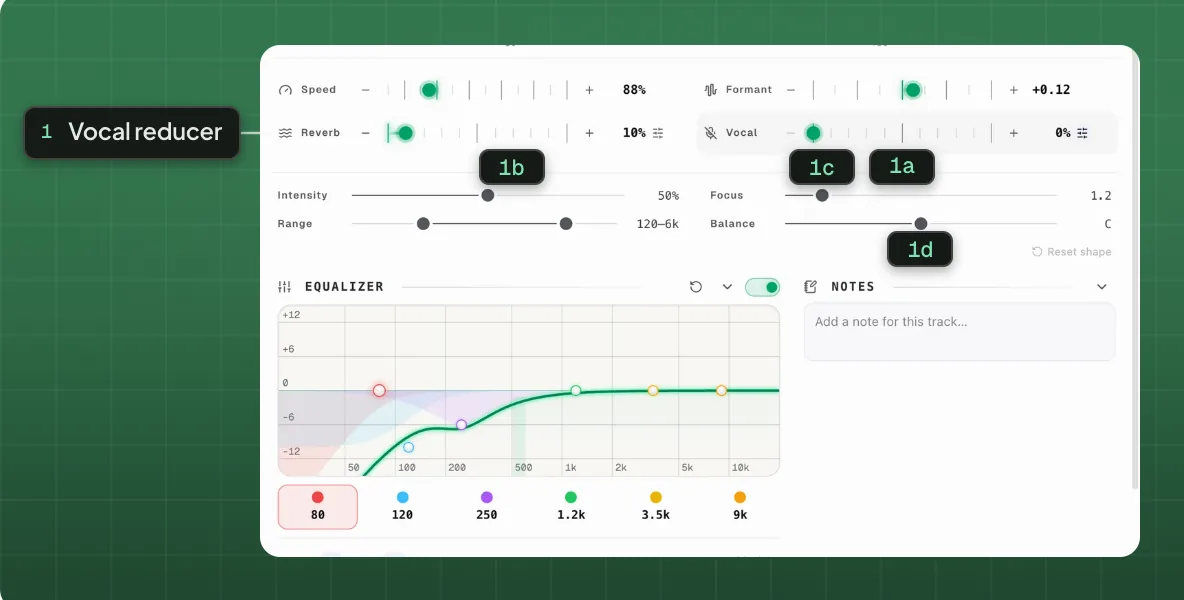
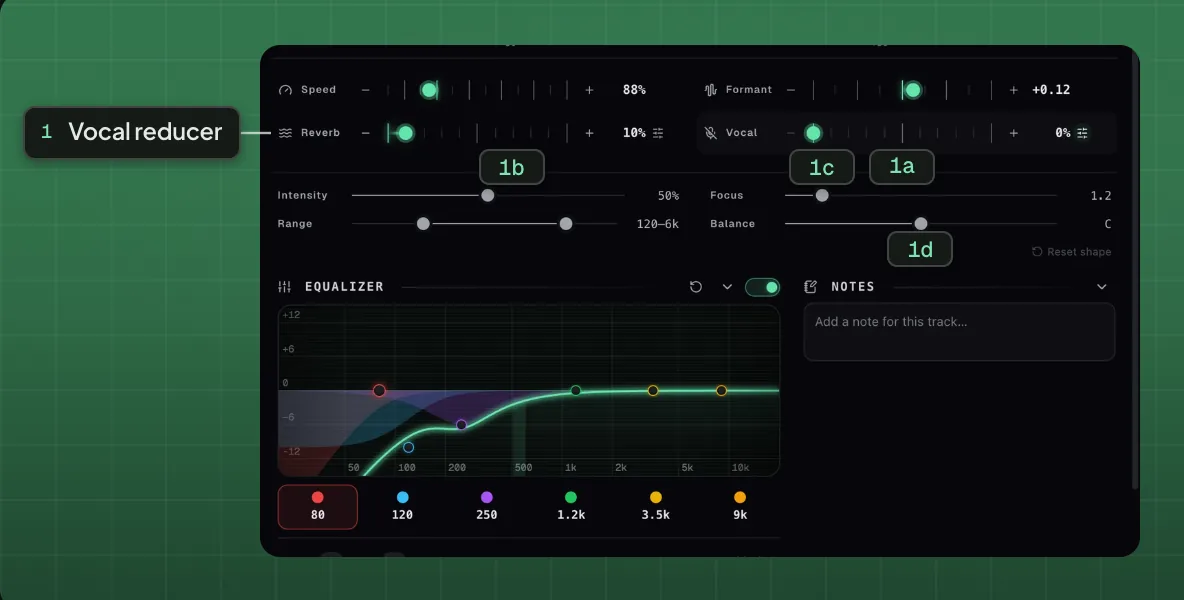
- 1Vocal reducer
- 1aAmount1bIntensity1cFocus1dBalance
Amount is the master: the Vocal strip’s own slider, setting how much of the reduction is applied at all. The four below it shape what that reduction targets.
- IntensityHow hard to subtract. Defaults to the middle; past about 75% it turns amber, which is a warning that the rest of the mix is starting to suffer.
- FocusHow tightly to target the centre. Higher is more surgical and leaves more of the mix intact.
- RangeThe band it works on, 120 Hz to 6 kHz by default — deliberately excluding the bass so the low end survives.
- BalanceNudges what counts as centre, for mixes where the voice is slightly off.
Turn the song into a backing track.
Vocal reduction is part of Capo Pro · 7-day free trialWhen it cannot help
It will not isolate the vocal on its own, will not match a trained separation model, and will not produce a file. On a song where the voice is doubled and panned, or the recording is close to mono, the honest answer is that it cannot help — and no amount of Intensity will change that, it will only hollow out the rest of the mix.
If the goal is singing rather than playing, moving the song into your range is usually the more useful move.
Questions
How does removing vocals actually work?
Why does it do nothing on this song?
Why is the Vocal control greyed out?
Will it isolate the vocal instead?
Keep reading

How to transpose a song to fit your vocal range
Move the song, not your voice. The hard part is not the transposition, it is keeping the singer sounding like a person.
Why Capo ships three time-stretch engines instead of one
Audio quality picks between SoundTouch, Signalsmith and Rubber Band. What each one costs you, and when to change it.

How to learn a song by ear without naming a single note
You do not need perfect pitch or theory. You need a slow loop, one string, and a way of asking the recording yes-or-no questions.